
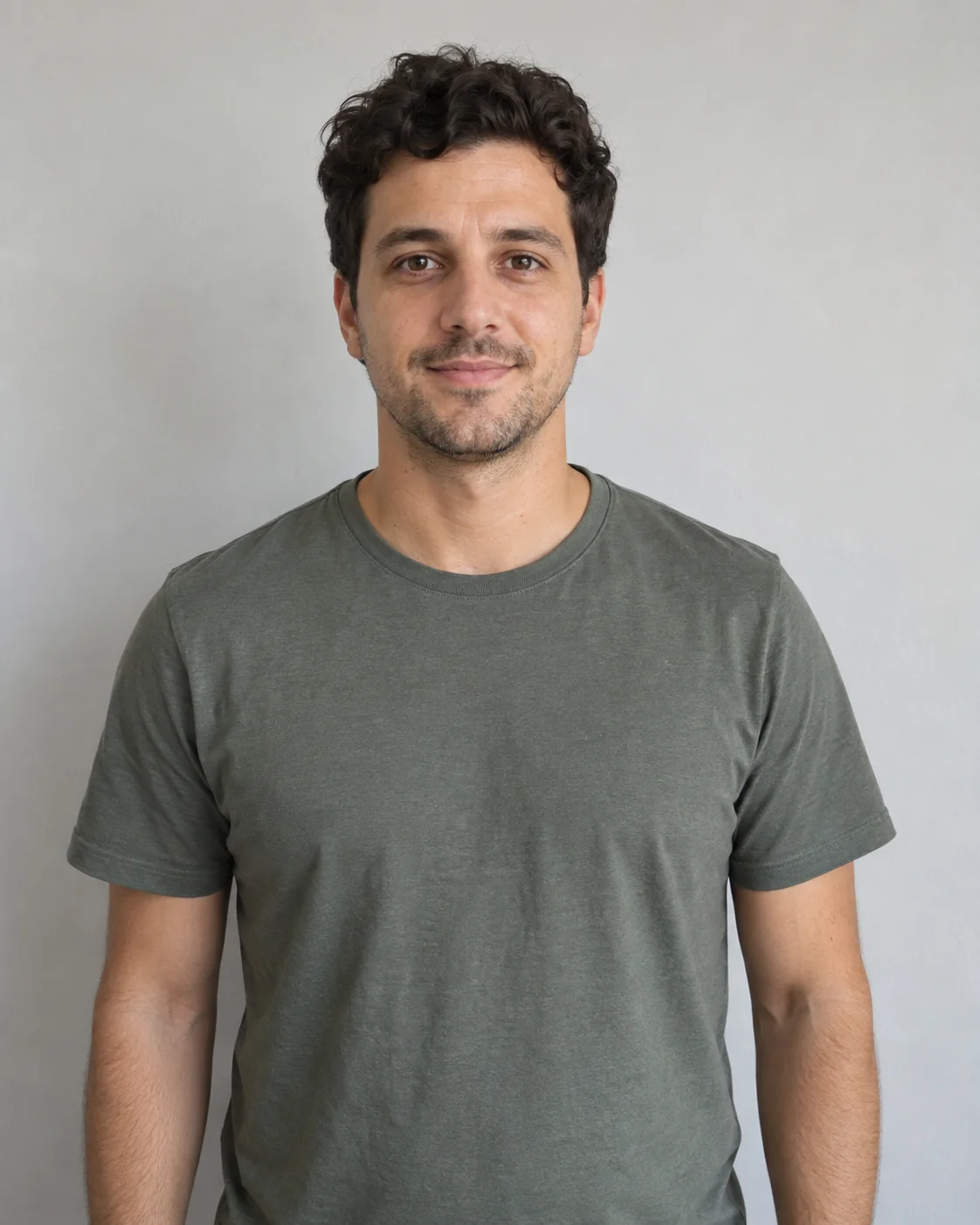
Recommended
- One person in each photo, facing the camera or at a slight angle.
- Clear face, hair and clothing in even light.
- Distinct photos make the two roles easier to check.
Two photos. One kitchen dance. Keep the handoff in order.Put yourself and a friend into the Wipe Me Down kitchen dance. Choose the opening 5 seconds or the full 15-second handoff, with reference audio.
The generated example and its opening, middle and ending frames.
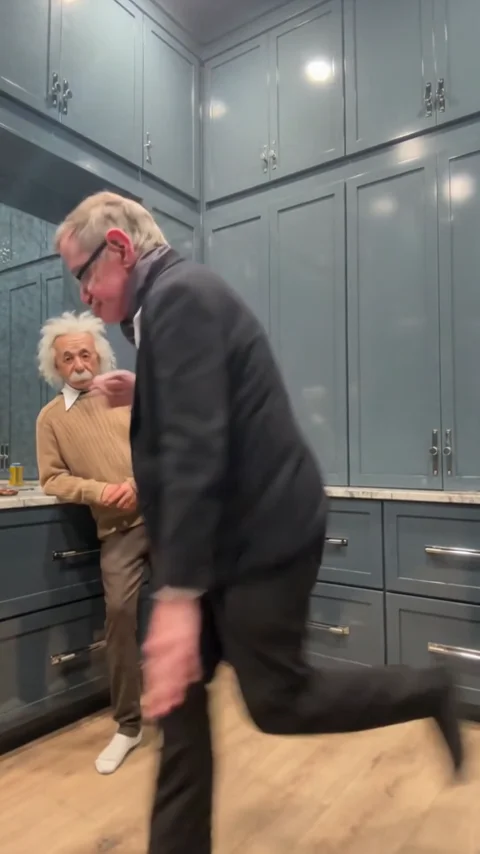
01Opening
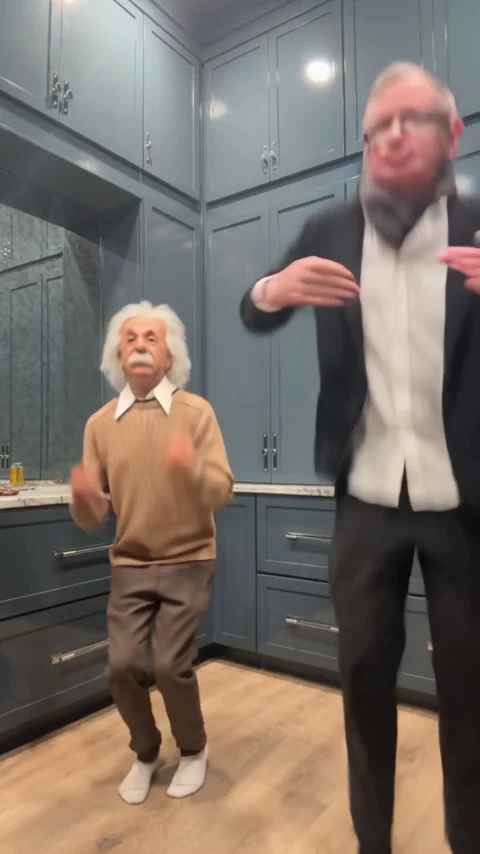
02Middle
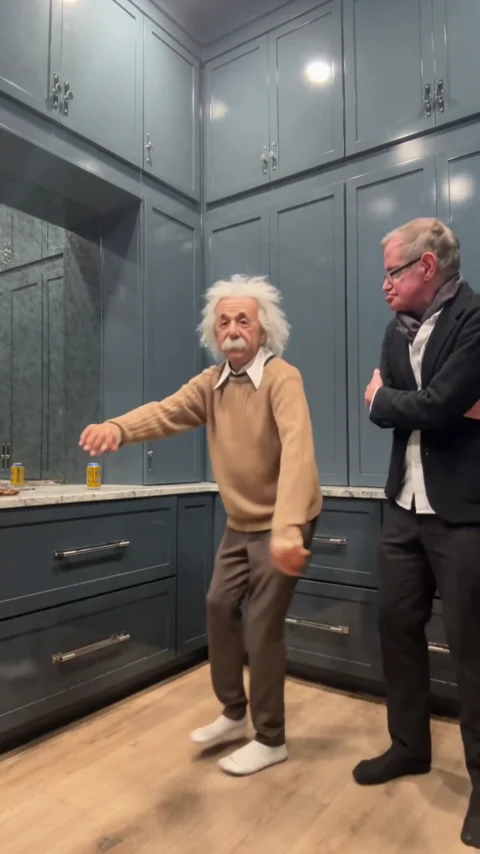
03Ending
Two dancers take turns leading the same kitchen routine. This is the dance handoff, not the Wipe It Down mirror transformation.
The first dancer, originally dressed in black, opens the routine. The second, originally in a light hoodie and red trousers, takes over later. Assign photos by these roles rather than their changing screen positions.
View the reference clipThe reference supplies the kitchen, choreography and camera. Photos guide each assigned person. The 5-second opening ends before the handoff; choose 15 seconds to include both leads.
The source clip explains the performance. The How to example shows an actual generated result.
The linked performance is the 15-second kitchen scene used here. The first dancer opens in black; the second waits by the counter before taking over. This identifies our reference, not the earliest creator of the trend.
View the reference clipAssign one photo to each dancer. The 15-second option includes the handoff; 5 seconds covers only the opening. The How to panel shows our earlier generated example with its actual inputs.
Choose clear photos, check the role mapping and review your settings before generating.
Upload a clear photo for First dancer and another for Second dancer. Check that each photo matches the intended role before generating.
Choose 5 or 15 seconds, then 480P or 720P. Default: 15 seconds at 480P. Check both roles and the quoted credits.
Check the credits and generate. Follow progress in History, then preview and download the completed video.
Use one clearly visible person per photo, with an unobstructed face and enough of the outfit to describe their appearance.
Keep your inputs focused on the appearance you want to bring into the scene.
Assign the opening dancer and the later dancer separately so the handoff follows your choices.
Keep the kitchen setting, dance timing and change of lead from the reference.
Check identity, motion, edges and timing throughout the clip before sharing.
The generation button shows the credits required for your selected settings.
5 or 15 seconds in 9:16, at 480P or 720P, with reference audio. Default: 15 seconds at 480P.
Sign in to see your balance and the quoted credit total. Each new generation is a separate paid attempt.
The live quote in the generator is the current total for your chosen settings.
Choose this template for the displayed scene. Use AI Character Swap when you want to supply a different video.
Try another scene with a different performance.
First dancer is the person who opens the routine in front. Second dancer is the person waiting near the kitchen counter who takes over later. Check the role thumbnails before generating.
Yes. Upload the same clear photo separately into each role to give both dancers the same appearance. They still remain two separate people in the scene.
Yes. Remove the uploaded photos, then upload each one into the other role before generating. Check the role labels; each dancer keeps the choreography assigned to that role.
Choose the opening 5 seconds or the full 15-second kitchen routine in 9:16. The handoff happens later, so choose 15 seconds to see the second dancer take the lead. Both offer 480P and 720P; the default is 15 seconds at 480P.
Select your output settings to see the current credit total on the generation button. Sign in to check your available balance before submitting.
New generations use the selected reference clip's audio for the chosen duration. Generation does not grant music rights or guarantee that a social platform will keep the sound. Check permissions for your use, or mute or replace it before sharing.
Confirmed technical failures automatically return the credits charged for that task. A completed video with visual imperfections is not automatically a failed task. Check History and your balance before retrying; a new generation is a separate paid attempt.
Open History in the tool to check progress, preview the completed result and download it. If a request is still processing or its status is unclear, check that task before submitting again.
It is the original 15-second, 480P sample made with an earlier silent configuration. Its video and exact input photos remain unchanged. Current generations offer 5 or 15 seconds with reference audio; likeness and motion can vary.