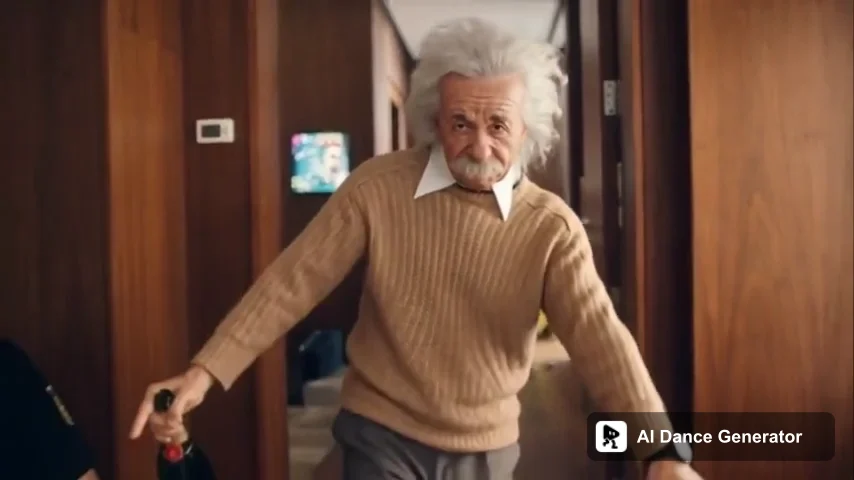
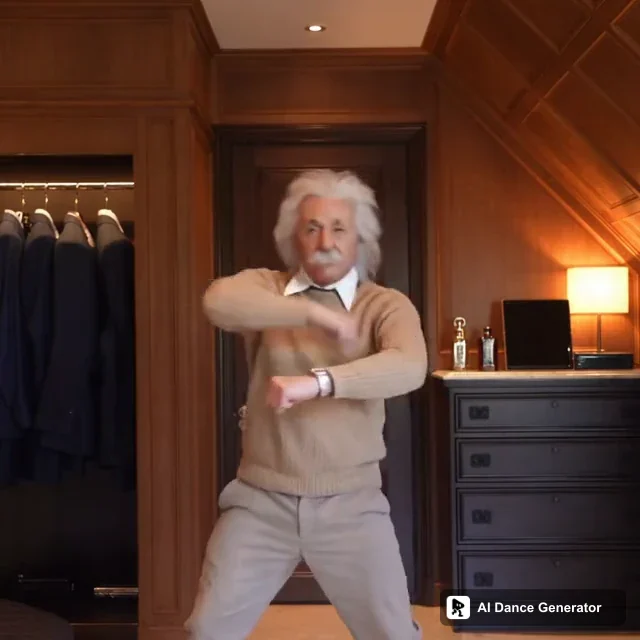
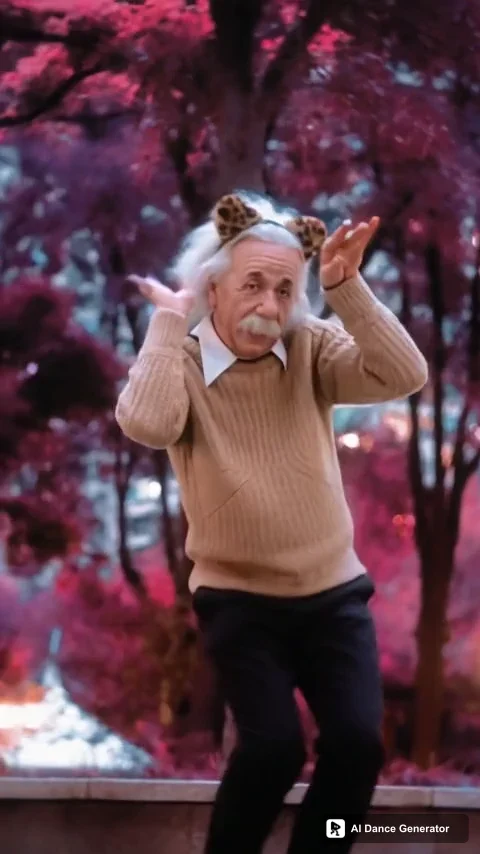
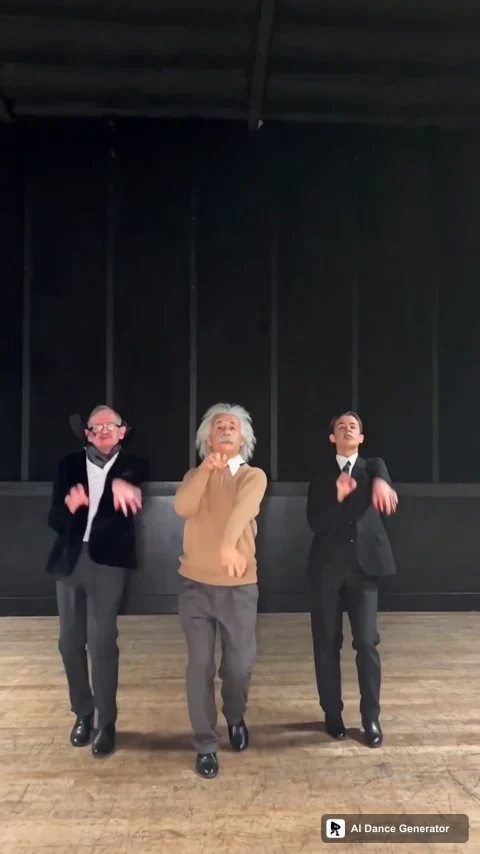
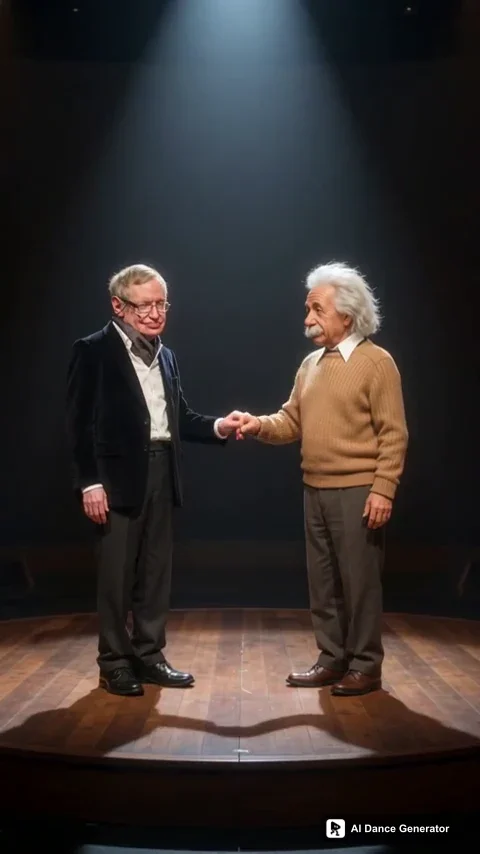
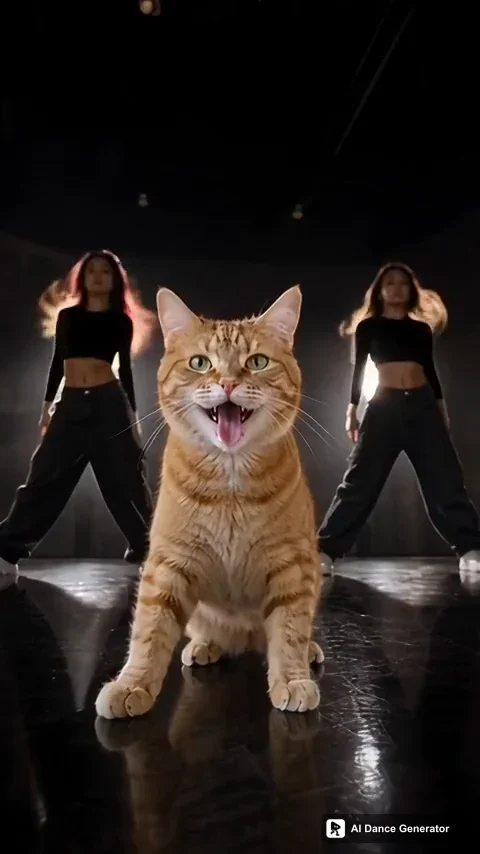
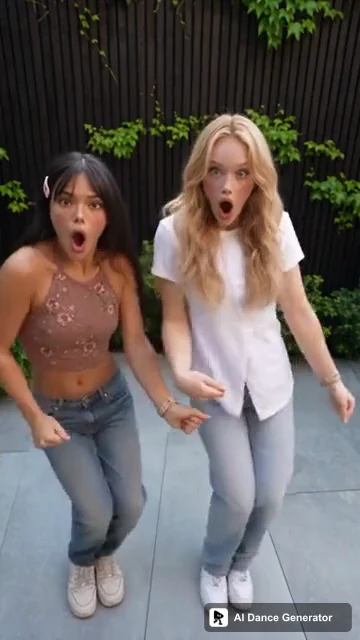
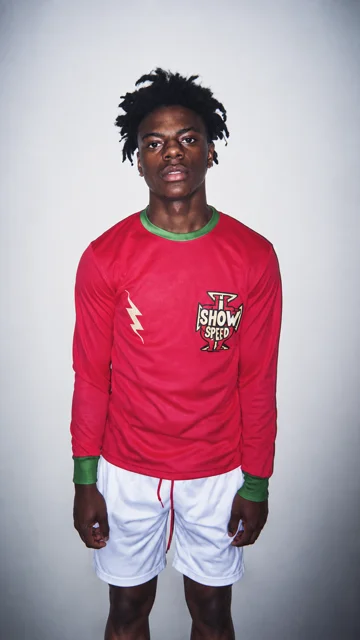
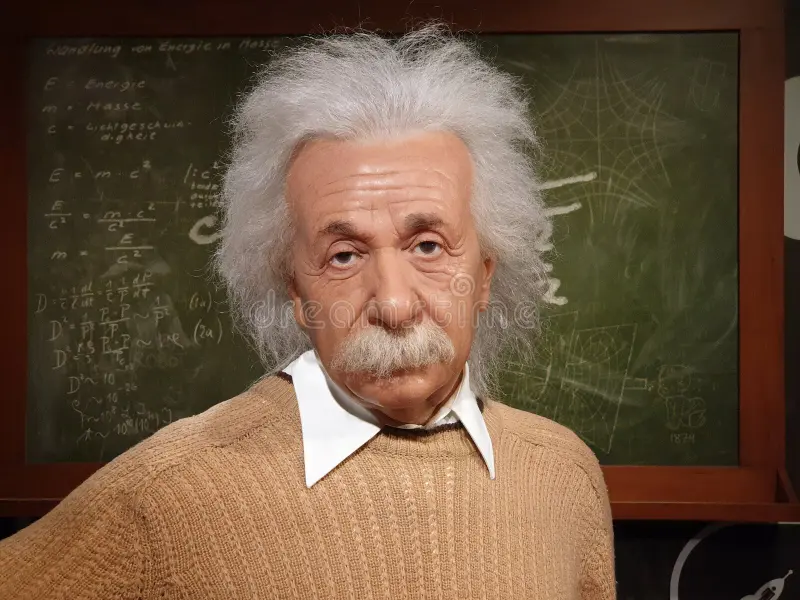
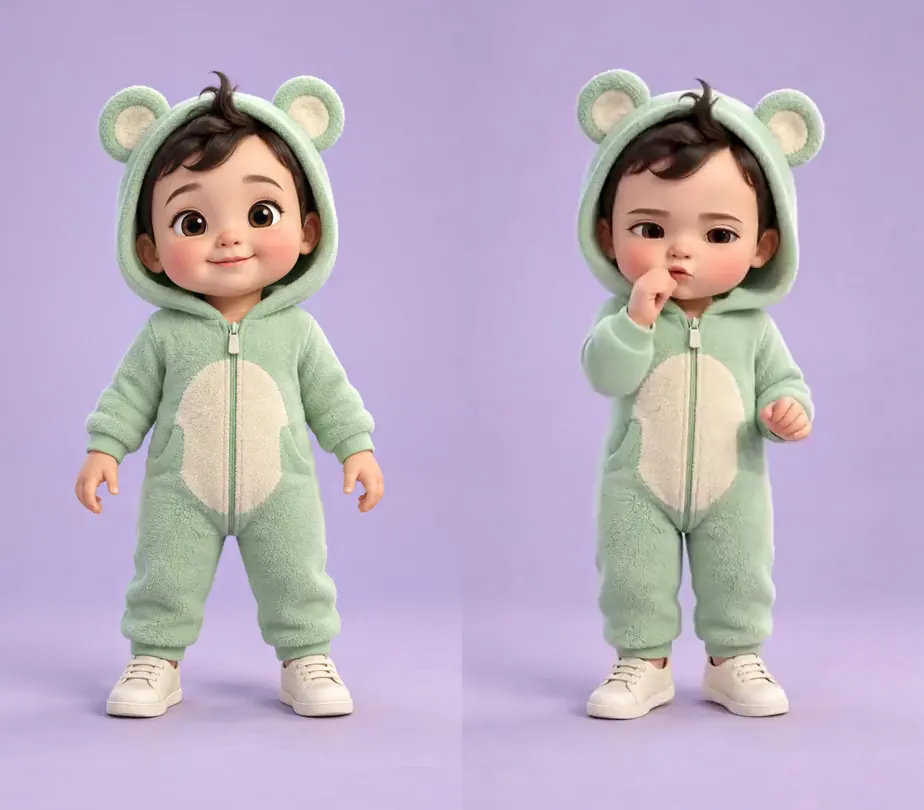
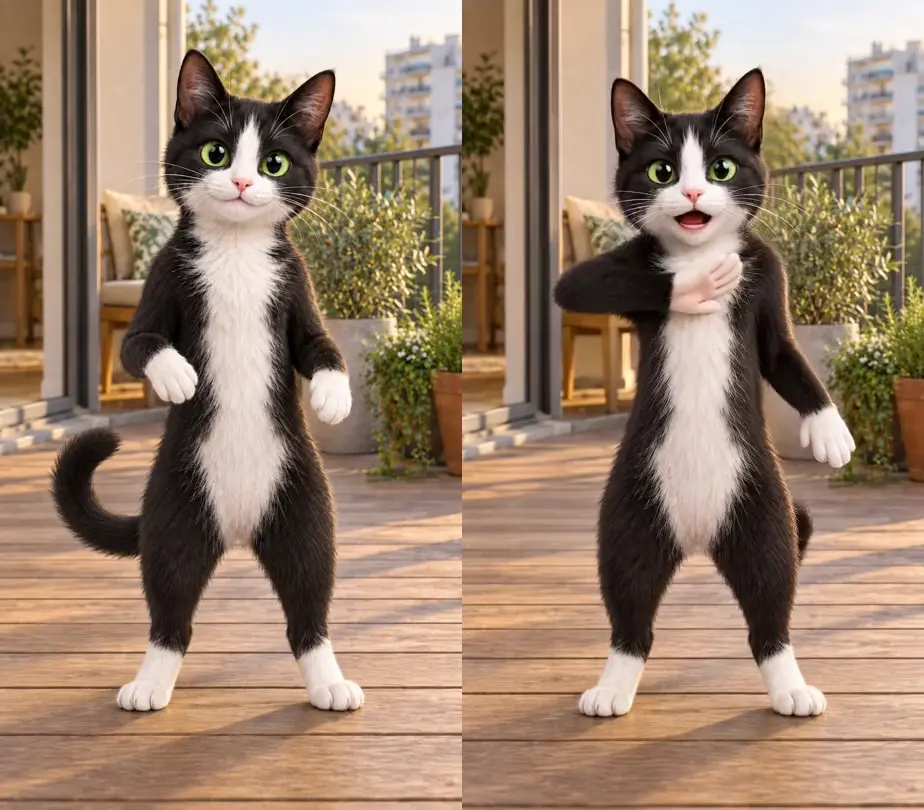
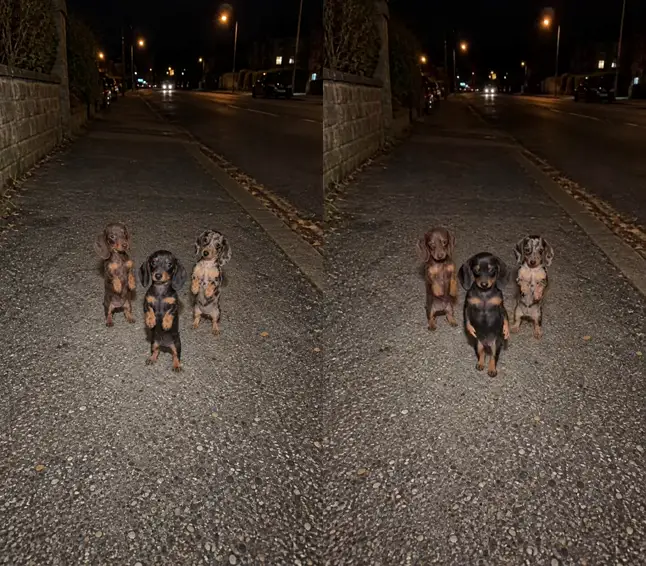
Use Motion Transfer to animate the character in your photo. Use Character Swap to replace characters in an existing video.
Motion Transfer
Make your photo dance
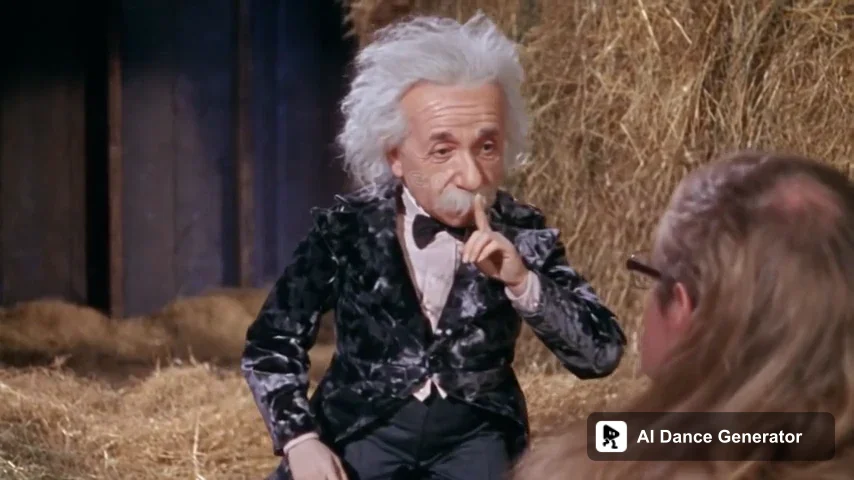
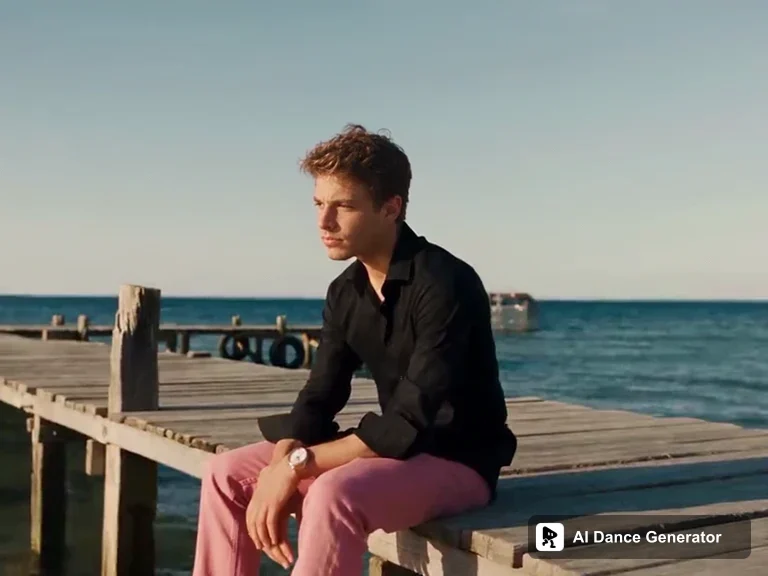
Your photo guides the character, outfit and setting; a dance video guides the movement. Choose a motion template or upload your own clip. Start with one clearly visible performer.
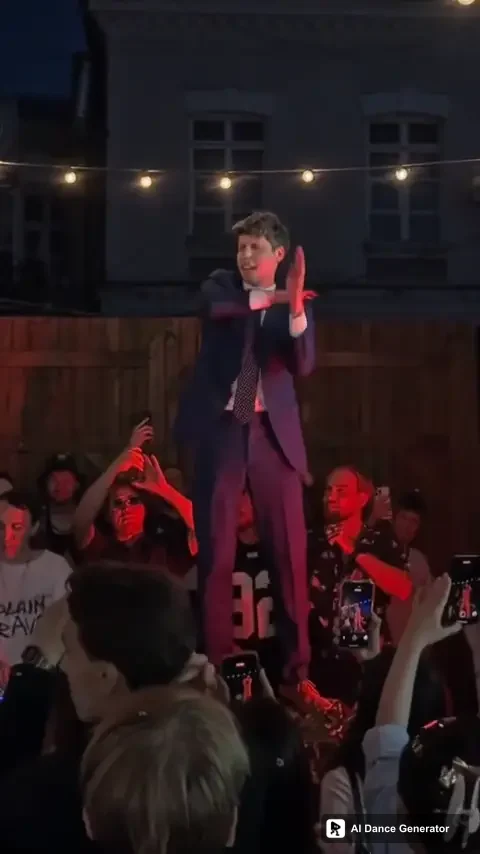
One input photo and one dance reference, shown with their actual generated result. New generations may vary.
Character Swap
Replace dancers and performers
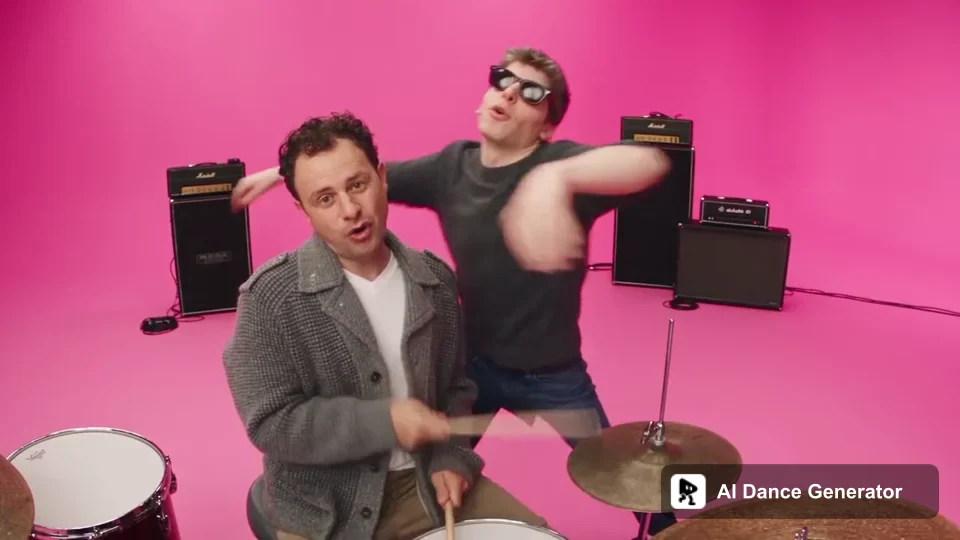
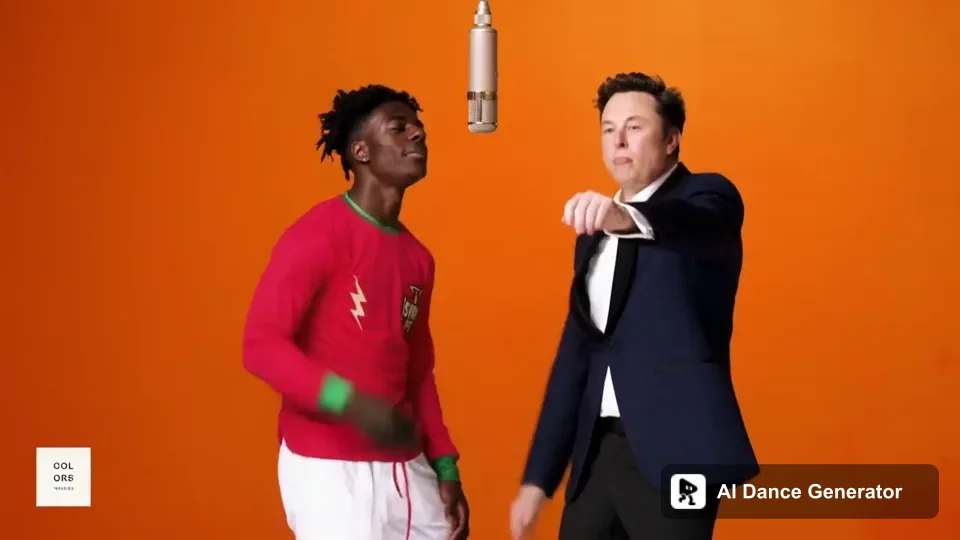
Your photos guide the new cast's appearance. The source video guides the scene, performance, camera movement and shot changes. For duo or group templates, follow the named roles when adding photos.
The motion preview is an AI-recast display copy. The 15-second result used the original clip and this photo.
Both workflows generate new frames. Faces, clothing, background details and framing may vary; exact preservation is not guaranteed.
Make your AI dance video in three steps
Pick the performance, add your cast, and make your version.
01
Choose your workflow
Use Motion Transfer to animate your photo or Character Swap to replace a video's cast. Pick a template or upload a clip you have permission to use.
02
Add your photos
Upload a clear photo for each required role. Follow the tool's photo guidance and check the video length, quality and total credits.
03
Generate and download
Generate your video, then preview the faces, movement and audio. Download the finished MP4 when you're happy with it.
Solo, with friends, or with a pet
Animate one person or an original character, choose a duo template for you and a friend, or explore playful pet dances. Photo requirements depend on the subject and workflow.
Choose the right way to create, prepare your photos, and understand the cost.
What can I make with the AI dance generator?
You can make a person or character in a photo follow a dance, or put a new cast into an existing performance video. Start with a dance template or your own clip. The selected tool determines the photo requirements, available lengths and output options.
Should I use Motion Transfer or Character Swap?
Use Motion Transfer when you want a photo's character to follow movement from a video. Your photo guides the character and setting. Use Character Swap when you want to replace people in an existing video, with that video guiding the scene, performance and camera movement.
Which option uses my photo's background?
Motion Transfer uses the photo to guide the visual setting as well as the character. Character Swap uses the source video's scene. Both generate new frames: background details, clothing, faces and framing may change, so neither is a pixel-for-pixel preservation tool.
Can I upload my own dance video?
Yes. Both Motion Transfer and Character Swap accept your own short video. Motion Transfer works best with one clearly visible performer and limited camera movement. Check the selected tool's duration and file requirements, and use a clip you own or have permission to edit.
Can I make a video with two or more people?
For a duo or group, choose a Character Swap template with the required roles and add a photo for each role. The available roles depend on the template. Motion Transfer is designed around one main performer; uploading more reference images does not guarantee that every person in a crowded video can be replaced independently.
How long can my video be?
Motion Transfer supports clips up to 15 seconds. Character Swap accepts custom clips up to 15 seconds, while selected templates also offer longer versions, up to 30 seconds. Use the duration options shown for your chosen tool or template; not every template has the same full length.
Does the generated video include music?
Audio support depends on the selected tool and reference clip. Check the tool or template details, then preview the result's sound before sharing. Generating a video does not grant rights to a song or recording; use audio you have permission to publish.
How much does an AI dance video cost?
The credit cost depends on the tool, video length and quality. Your total is shown before generation. Motion Transfer, Character Swap and templates share your account's credit balance, but do not all use the same number of credits.
What happens if generation fails or the result needs changes?
Credits are automatically returned for technical generation failures. A completed video with an unwanted creative result is not a technical failure and does not automatically receive a credit refund. Review the result before sharing; a new generation uses the credits shown for that request.
What kind of photo works best?
Use a sharp, evenly lit photo with a visible face and the body parts needed for the performance. Avoid heavy occlusion and tightly cropped faces for full-body dances. For multi-person templates, use separate photos and follow the role labels. Pet and illustrated-character results depend on anatomy and pose; check the relevant examples before starting.