
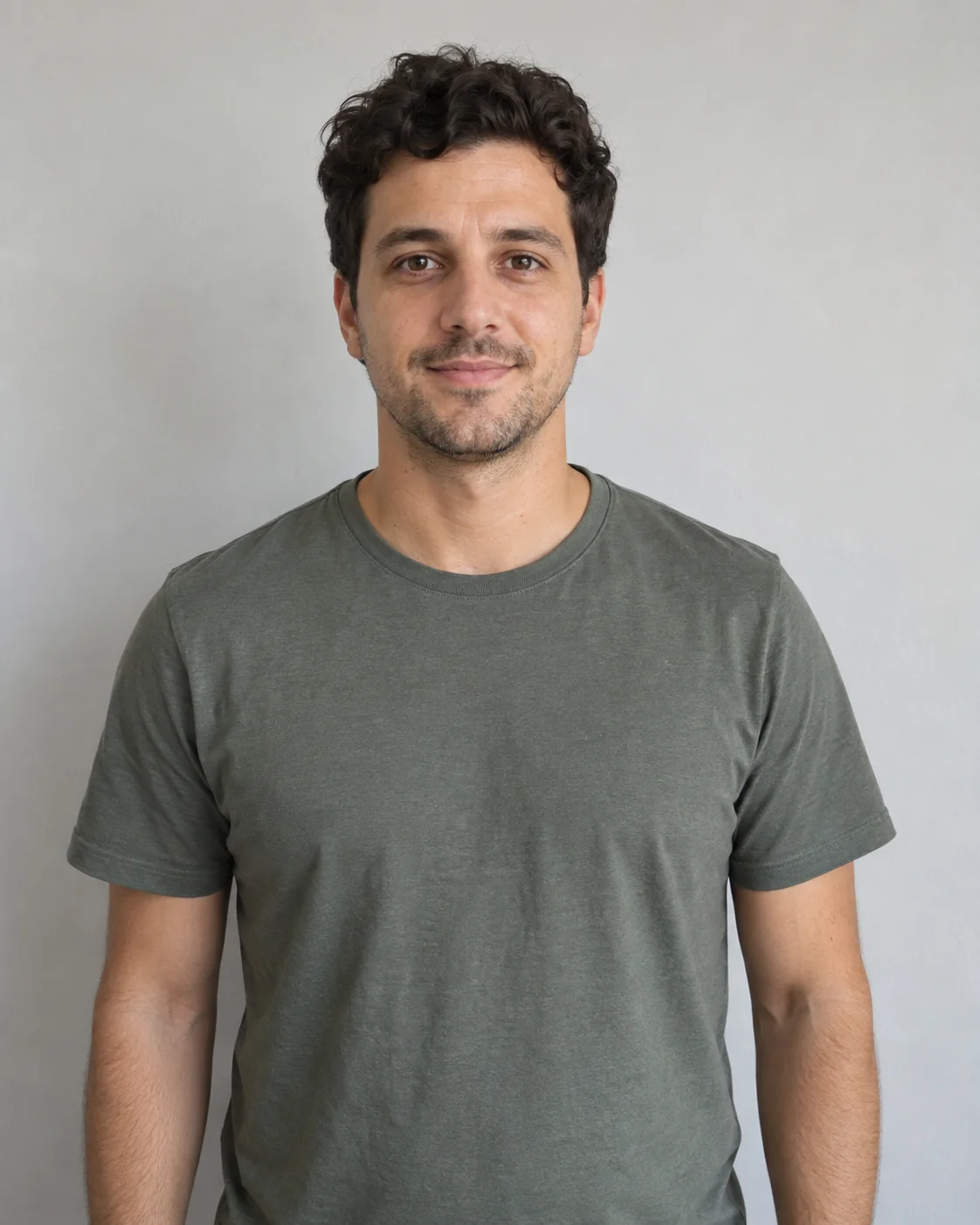
Good starting point
- One person with a clear, unobstructed face
- Front-facing or a slight turn, with the hairstyle visible
- Even lighting and natural skin and fabric detail
- Shoulders and torso visible, showing the outfit you want
One photo. A yellow-studio performance in 5, 10, or 15 seconds.Turn one photo into a yellow-studio performance. Choose 5, 10, or 15 seconds, guided by the reference's gestures, pauses, and camera.
The yellow-studio format comes from Khantrast's Genius Verified performance of She Bugging (Whatchu Gonna Do). The remake idea is to put a new person in that seat.
The template uses the short seated excerpt shown here. Small hand gestures, a pause, and a mostly fixed camera give it a different feel from a full-body dance. Your photo supplies the requested appearance; the clip guides the performance.
Watch the original Genius Verified videoThe source performance is not a result generated by this tool. Our How to pairs an actual generated result with its exact input photo. This is an independent tool, not a Genius or artist partnership.
The song name, the interview performance, and a photo-based remake describe different parts of this format.
Khantrast performs and discusses She Bugging in the original Genius video. Baby You Buggin is another phrase people use to find the song and this yellow-background performance.
View the Genius uploadThe seated, front-facing performance leaves room for subtle expression rather than elaborate choreography. That performance is the reference for this short remake, not a prompt to invent a new dance.
Watch the source performanceChoose a clear photo, preview the performance, and select the length and resolution. The template prepares the motion reference and prompt for you.
Check the example, add your photo, and review the complete result with sound.
Show the face, hair, shoulders, and clothing. A front-facing or slightly turned waist-up photo gives more appearance detail than a tight face crop.
Choose 5, 10, or 15 seconds at 480P or 720P. The default is 15 seconds at 480P. Check the total credits before starting.
Watch the mouth timing, hands near the face, and the pause. Download your result when it is ready; completed videos are also in History.
The camera stays close, so a clear face and visible upper body matter more than a dramatic background.
One prepared performance, with three clip lengths and a single photo to upload.
Your upload corresponds to the seated performer. There are no duo assignments or background characters to configure.
The prompt requests your photo's face, hair, proportions, and clothing. Details outside the photo still need to be inferred.
The prepared clip guides the gestures, pause, camera, and yellow setting. It does not use the background from your photo.
Review the entire selected clip with sound. Check whether the face stays recognizable and whether movement settles during the pauses.
Choose 5, 10, or 15 seconds. The selected length and resolution determine the credit total.
15 seconds at 480P is selected by default. Check the live total on the generation button after choosing your length and resolution.
Use your existing balance or choose a plan or credit pack. A new generation is a separate attempt with its own displayed cost.
This template uses Wan3 Prime through fal. Technical failures return generation credits; a completed result with imperfect likeness or movement is not a technical failure. View the model documentation
Compare the actual workflow, not just the song name. Templates may use different footage, effects, or generation models.
Use the same account and credits across solo and duo templates.
This page refers to the yellow-studio Genius Verified performance associated with She Bugging (Whatchu Gonna Do) by Khantrast and Mr. Flintstone. Baby You Buggin is a common way to refer to the hook. This is a visual character-replacement tool, not a song cover generator.
One photo of one person, ideally showing the face, shoulders, torso, and clothing. This first version does not support groups, duos, pets, or changing the song.
The prompt requests those details from your photo. The reference defines the performance, not your identity. Details can still drift, especially around the mouth, fingers, and hand-to-face contact, so review the complete result.
Not on this page. It uses prepared 5-, 10-, and 15-second excerpts of the yellow-studio performance with a mostly fixed camera. The background from your photo is not used as the requested scene.
Choose 5, 10, or 15 seconds in landscape 16:9, at 480P or 720P. The default is 15 seconds at 480P. The generation button shows the current total credits. The How to example is 5 seconds long.
No exact match is guaranteed. The reference guides the timing and performance, but Wan3 Prime generates new frames. Check mouth movement, the pause, hand shape, and face consistency before sharing.
Yes, the prepared reference audio is added to the finished video. It is not your voice and does not clone it. Display previews are muted. Music and footage rights are separate from generating a video, and Genius and the artists do not endorse this tool.
Technical failures return generation credits automatically. A completed video with visual imperfections is not a technical failure. Starting another generation uses additional credits.
No. The single-performer prompt and references are already configured. Upload your photo, choose the length and resolution, and confirm the displayed cost. The model is Wan3 Prime reference-to-video through fal.
You can delete a finished entry from account History. That does not instantly remove copies held by generation or storage providers. See the privacy policy for data handling.