

Recommended
- One clearly recognizable adult in each image.
- Clear facial details with even light.
- Enough body and clothing detail for the intended appearance.
Two adult photos. Singer and neighbor. 5 or 15 seconds, 16:9.Cast yourself and another adult in the Call Me Maybe window-and-lawn scene. Two photos, 5 or 15 seconds, and reference audio in horizontal 16:9.
A generated 15-second window-and-lawn scene, with frames from the opening, middle and ending.
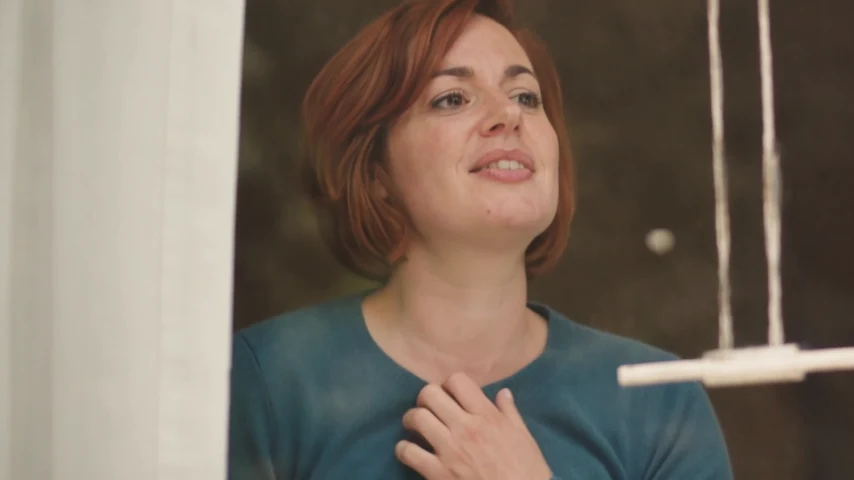
01Opening
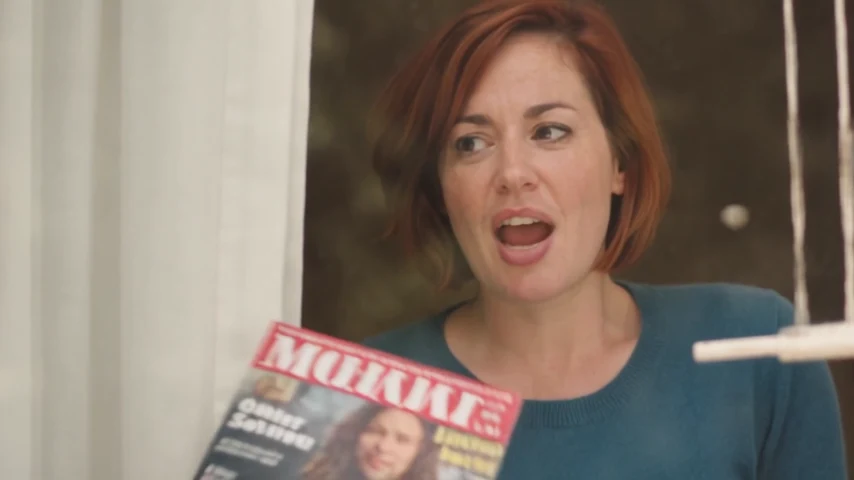
02Middle
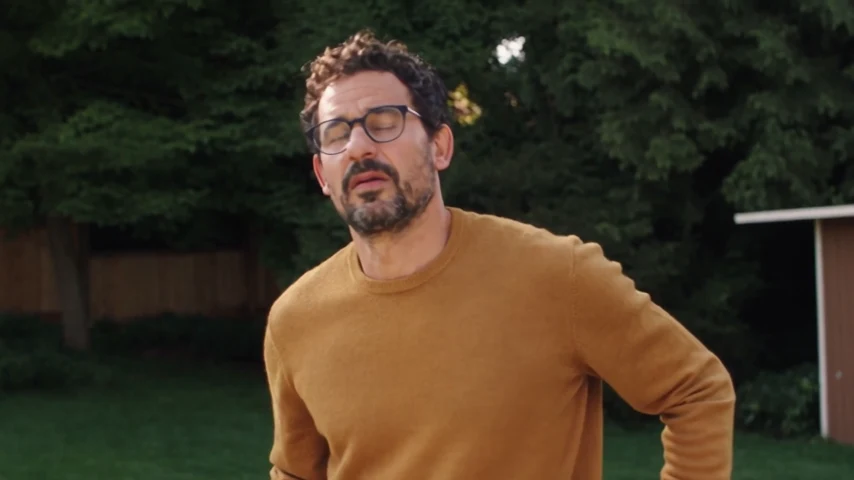
03Ending
The singer reacts at a window while the neighbor performs outside on the lawn. Your photos recast those two roles.
This template uses the opening 15 seconds of the selected scene remake, not the full music video. It keeps the window reactions, lawn setting, shot changes and the neighbor's shirt-removal action. Your two photos are assigned to Singer and Neighbor throughout the excerpt.
View the reference clipThis is character replacement in a fixed horizontal scene, not a newly invented setting. The neighbor's face is briefly obscured during the shirt-removal action. Five seconds covers only the opening; 15 seconds includes the later reactions.
The source clip explains the performance. The How to example shows an actual generated result.
This page uses the opening 15 seconds of the linked remake by @downey.ai. The source is longer, but later band scenes are outside this template. The reference is not our generated result.
View the reference clipAssign Singer and Neighbor separately. Five seconds shows the opening; 15 seconds includes more back-and-forth reactions. Our How to result uses the exact two photos displayed beside it.
Cast two adults, preview the selected reference and choose your duration and quality.
Upload one clear photo for Singer at the window and one for Neighbor on the lawn. Check that each photo matches the intended role before generating.
Choose the 5-second opening or the complete selected 15-second excerpt in 16:9, then 480P or 720P. Default: 15 seconds at 480P. Check the credit total.
Check the credits and generate. Follow progress in History, then preview and download the completed video.
Choose a separate, clear adult photo for each role, with a visible face and enough of the body to establish their appearance.
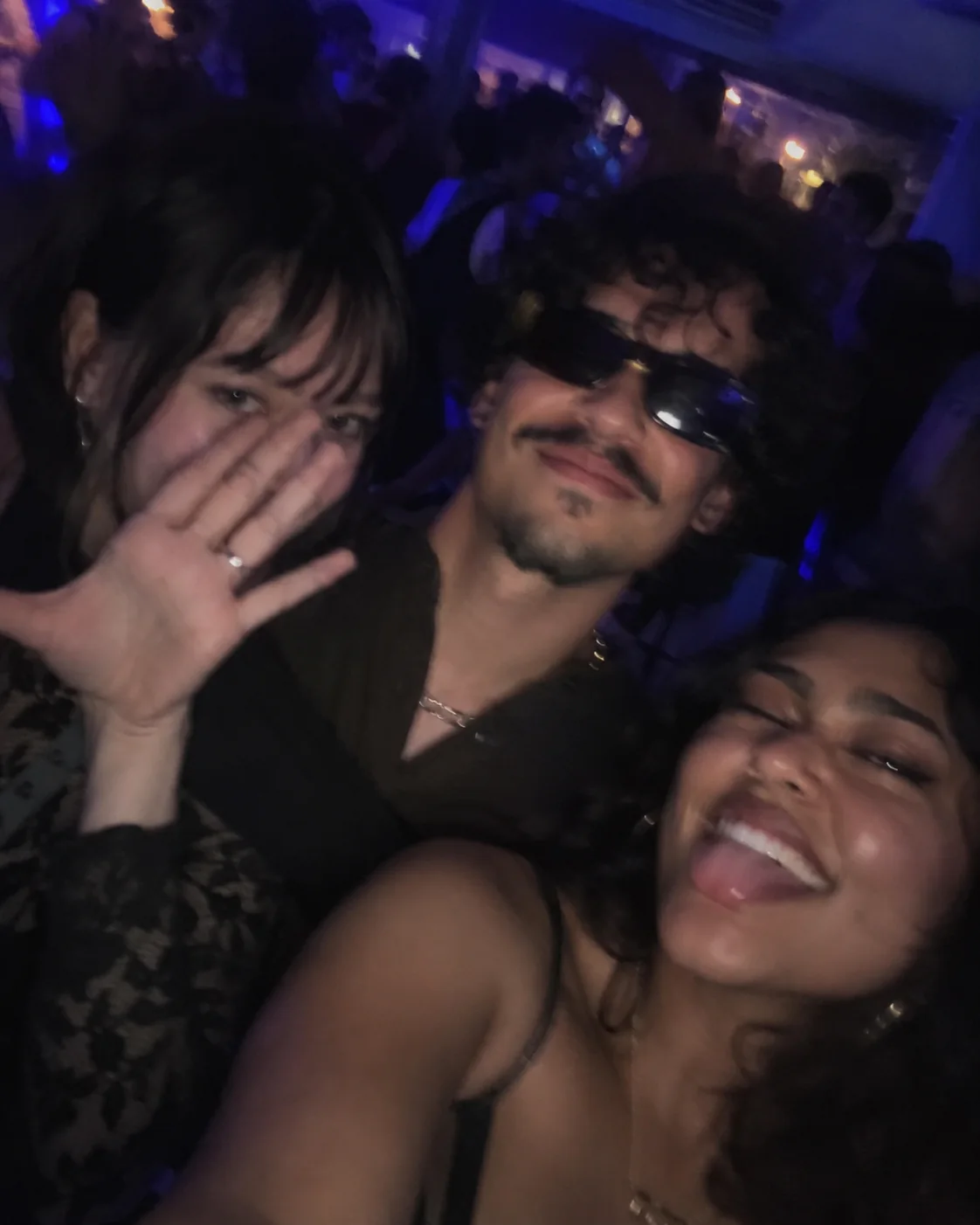
Keep your inputs focused on the appearance you want to bring into the scene.
Choose one photo for Singer and another for Neighbor to cast each role separately.
Follow the 15-second reference's window reactions, lawn action and horizontal framing, including the neighbor's shirt-removal gesture.
Check both faces across the cuts, especially after the neighbor's shirt-removal gesture and the final window reaction.
The generation button shows the credits required for your selected settings.
5 or 15 seconds, horizontal 16:9, at 480P or 720P, with reference audio. Default: 15 seconds at 480P.
Sign in to see your balance and the quoted credit total. Each new generation is a separate paid attempt.
The live quote in the generator is the current total for your chosen settings.
Choose this template for the displayed scene. Use AI Character Swap when you want to supply a different video.
Try another scene with a different performance.
The singer photo is assigned to the person at the window. The neighbor photo is assigned to the person outside on the lawn. Review both identities across cuts before sharing.
Yes. Remove the uploaded photos, then upload each one into the other role before generating. Confirm the role labels; each character keeps the action assigned to that role in the reference.
Use a clear photo of one adult for each role, with an unobstructed face, even lighting and visible appearance details. Avoid photos of children, group photos, heavy blur and extreme cropping.
Choose 5 or 15 seconds in horizontal 16:9, at 480P or 720P. Five seconds uses only the opening; it does not compress all the action. The full option means this page's selected 15-second excerpt, not the longer source or full music video. The neighbor's role includes removing a shirt.
Select your output settings to see the current credit total on the generation button. Sign in to check your available balance before submitting.
New generations use the selected reference clip's audio for the chosen duration. Generation does not grant music rights or guarantee that a social platform will keep the sound. Check permissions for your use, or mute or replace it before sharing.
Confirmed technical failures automatically return the credits charged for that task. A completed video with visual imperfections is not automatically a failed task. Check History and your balance before retrying; a new generation is a separate paid attempt.
Open History in the tool to check progress, preview the completed result and download it. If a request is still processing or its status is unclear, check that task before submitting again.
The displayed 15-second, 480P example was made with an earlier silent configuration and is kept unchanged with its exact photos. New generations use reference audio. The example also shows that clothing, accessories and cut timing can vary; exact replication is not guaranteed.