Create Your Smalltown Boy AI Dance Video

Two photos. Your courtyard duo in 5, 15, or 24 seconds.

Loading…

What is the Smalltown Boy AI dance trend?

The courtyard format pairs exaggerated close-ups with a shared dance. Both people take turns reacting to the camera before moving together.

The scene moves between wide-angle faces, hands at the head, and a wider courtyard dance. This template uses photo 1 for the first close-up and the left dancer, and photo 2 for the second close-up and the right dancer. Each photo guides that person's identity and clothing.

Watch a Smalltown Boy example on TikTok

The preview shows the scene reference, not an example generated from your photos. Social links are examples of the format; they do not establish the first creator or imply endorsement.

From courtyard clip to your own duo

This courtyard format is associated with Bronski Beat's Smalltown Boy. Social clips and AI remakes use the same progression from individual reactions to a shared dance.

  1. The scene

    Close-ups, reactions, and a courtyard dance

    The format gives each person a close-up before bringing the pair into the same dance shot. Watch the reference to see how the expressions, framing, and movement change.

    View a TikTok example
  2. AI remakes

    Two photos become the cast

    AI workflows use separate photos for the two people and a video to guide the action. Eachlabs publishes one such Smalltown Boy workflow; its settings and pricing belong to that service.

    See the eachlabs workflow
  3. Your version

    Assign your two people

    Use a clear photo for each person, check the left and right assignments, and choose the available output settings. The reference and prompt are already prepared.

How to make your Smalltown Boy AI dance video

Upload two photos, check your settings, and review the finished duo.

  1. Add Person 1 and Person 2

    Use one person per photo. Person 1 takes the first close-up and frame-left in the dance; Person 2 takes the second close-up and frame-right. Show the faces, hair, and clothes you want to reference.

  2. Choose your output settings

    Choose the 5-second opening, 15-second excerpt, or full 24-second sequence at 480P or 720P. Check the total credits, then start your video.

  3. Review and download

    Watch the whole clip with sound. Check both identities, outfits, hands, and movement through the close-ups and wider shots before downloading.

Choose photos that show both people clearly

Upload a separate photo for each person. Their faces, hair, and visible clothing guide the replacements.

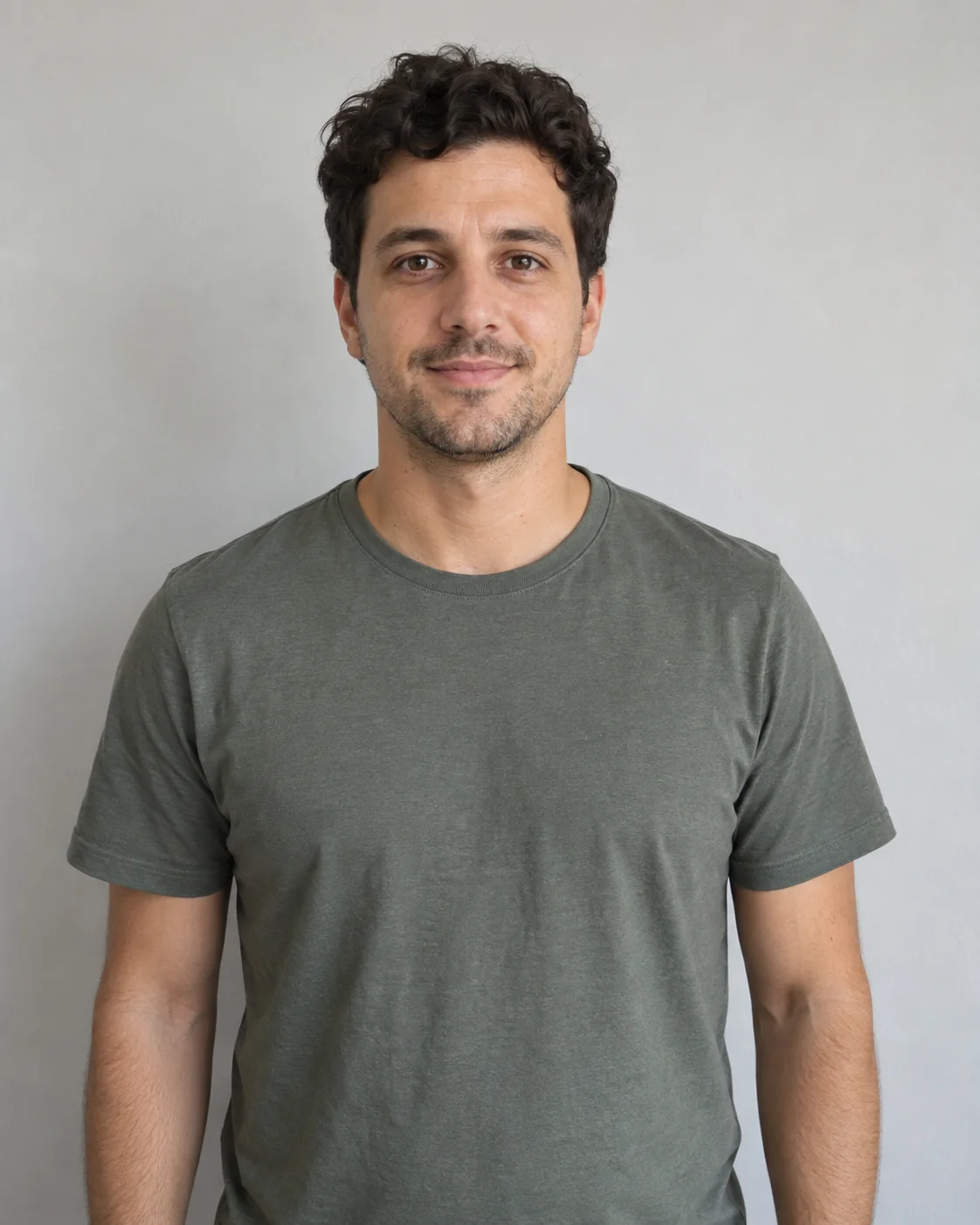
Example of a clear, evenly lit single-person portrait

Good starting point

  • One person per photo, with their permission to appear.
  • A sharp, evenly lit face with visible hair and facial detail.
  • Head and upper body in frame, with the outfit you want to reference.
  • A simple background and a roughly front-facing pose.
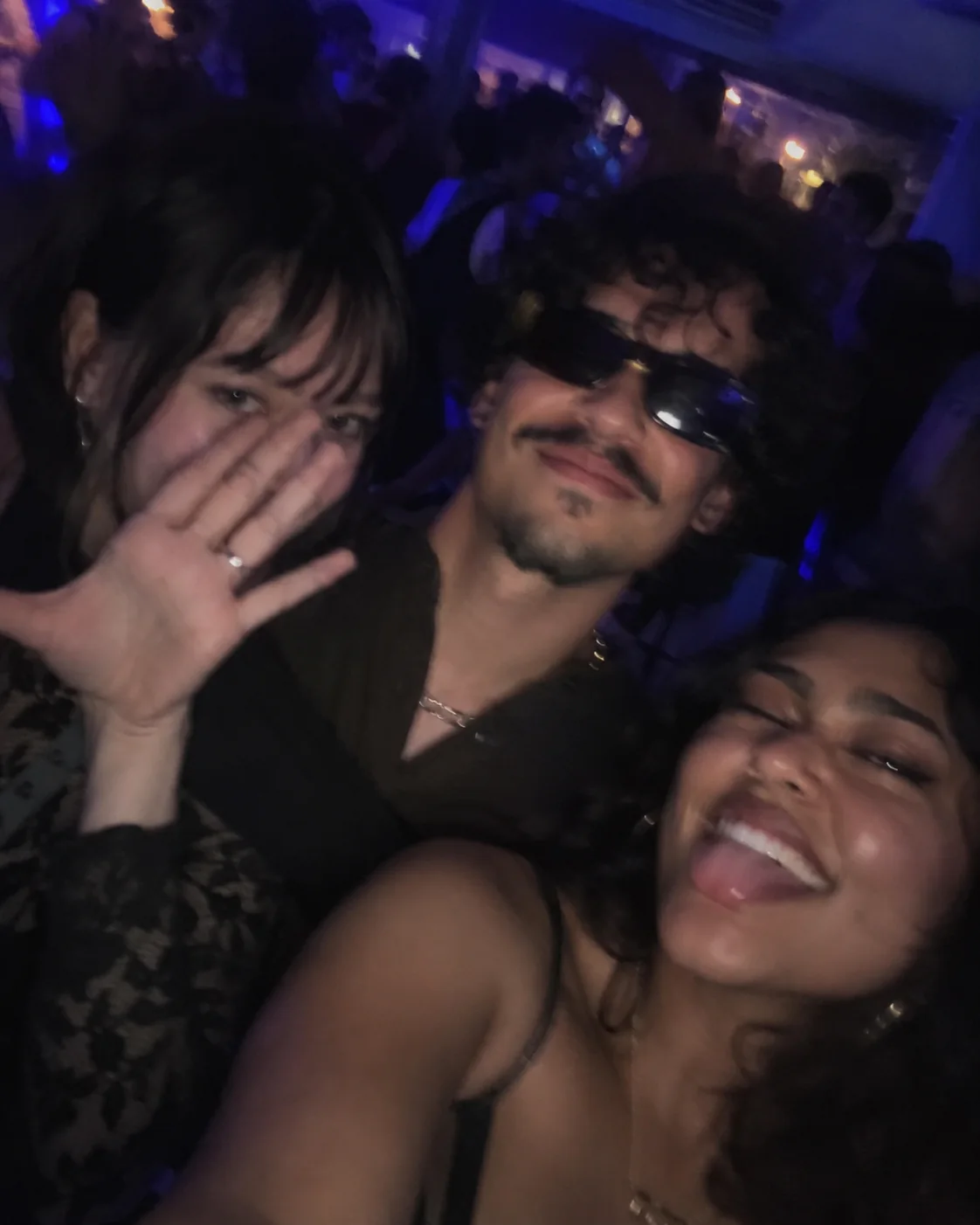
Example of a dim group photo with blurred and partly covered faces

Avoid these

  • Group photos with several competing faces.
  • Sunglasses, masks, or hands covering the face.
  • Dark, blurry, tiny, or heavily filtered portraits.
  • Tight crops that cut off the head or hide the outfit.

Your pair throughout the courtyard scene

One prepared reference connects the close-ups, reactions, and shared dance.

Two photo assignments

Person 1 opens the close-ups and appears on the left in the duo dance. Person 2 follows and appears on the right. Both take part in the reaction and dance sequence.

Faces, hair, and outfits from your photos

Each photo guides its own person's appearance. Use visible clothing and clear facial detail, then check the generated result for changes.

Prepared movement and camera

The reference guides the scene and camera. Choose 24 seconds for the full progression from close-ups to the courtyard dance. No filming or motion prompt is required.

A video you can review

Preview the finished clip and download it from your result. Fast expressions, hand positions, and identity continuity can vary between generations.

See the total before you create

Choose your output settings in the tool to see the total credit cost for one attempt.

Choose duration and resolution

Choose 5, 15, or 24 seconds at 480P or 720P. The displayed total updates for your selected video settings.

Check your credits

Review the complete quote before starting. Technical failures return the generation credits; a new attempt has its own quote.

The credit total in this tool is the price for your attempt. Provider documentation describes the underlying model. Wan3 Prime model documentation

Smalltown Boy AI, CapCut templates, or DIY?

Choose a prepared duo scene, an editing template, or a workflow you configure yourself. CapCut features vary with the template and editor.

Smalltown Boy AI
What you provide
Two photos with assigned roles; reference and prompt prepared.
Scene and movement
Reference-guided close-ups and courtyard dance. Appearance and motion can vary.
Output choices
One video: 5, 15, or 24 seconds at 480P or 720P, with reference audio.
Cost planning
The tool shows the total credit quote before each attempt.
CapCut templates
What you provide
Add the photos or clips requested by your chosen template.
Scene and movement
Uses the selected template's effects, transitions, and animations.
Output choices
Check the template's length and your editor's export options.
Cost planning
Free and paid templates. Check the selected template's price and requirements.
DIY AI prompts
What you provide
A prompt, subject photos, and any references your model supports.
Scene and movement
Describe the scene and actions; tune the prompt and references yourself.
Output choices
Length and resolution depend on the model you select.
Cost planning
Check generation and retry charges with your provider.

Keep the two-photo idea and explore a different reference.

Smalltown Boy AI dance questions

Do I need two photos?

Yes. This template requires two separate photos, one for Person 1 and one for Person 2. Use a single clearly visible person in each photo, with their permission to appear.

Which person does each photo replace?

Photo 1 replaces the person in the first close-up and on the left side of the frame in the joint dance. Photo 2 replaces the person in the second close-up and on the right. Both people appear in the reaction and dance sequence; the assignments follow the reference.

Will it use the clothes from my photos?

The template asks the model to use each photo for that person's face, hair, and visible clothing. Use clear upper-body photos showing the outfits you want. Clothing and facial details can change during generation, so check the result.

Do I need a prompt or a dance video?

No. The template supplies the reference video and prompt and uses Wan3 Prime through fal. Add your two photos and select the available output settings.

What duration and resolution will I get?

Choose 5, 15, or 24 seconds at 480P or 720P. The 5-second option covers the opening close-up, not the full dance. The 15-second excerpt includes alternating close-ups and the start of the joint dance. The 24-second option covers the full courtyard sequence and final shared close-up. Review the selected reference and total credits before starting.

How much does it cost, and what if generation fails?

The tool displays the total credit cost for your selected settings before you start. Technical failures return the generation credits automatically. A completed result that differs from your expectations is not a technical failure; review each result before paying for another attempt.

Does the video include Smalltown Boy audio?

The finished video uses the selected reference's audio. The full reference ends with a few silent seconds, so the 24-second option does not have continuous music. Display previews are silent. It does not clone your voice or grant a music license. Check the finished sound before sharing.

Will my video match the reference exactly?

The reference guides the scene, framing, and motion, but the result can vary. Check faces, outfits, hands, and movement across the close-ups and dance shots. Clear photos help the model identify each person; they do not guarantee an exact match.

Is the preview a video made from these uploaded photos?

No. The preview and role thumbnails show the scene reference to help you assign the two photos. They are not a generated example or a promise of what your result will look like.

Can I delete my video from history?

You can delete a finished video from your account's history. Removing a history entry does not instantly purge copies held by generation or storage providers. Use photos you have permission to upload and review the privacy policy for data handling.