
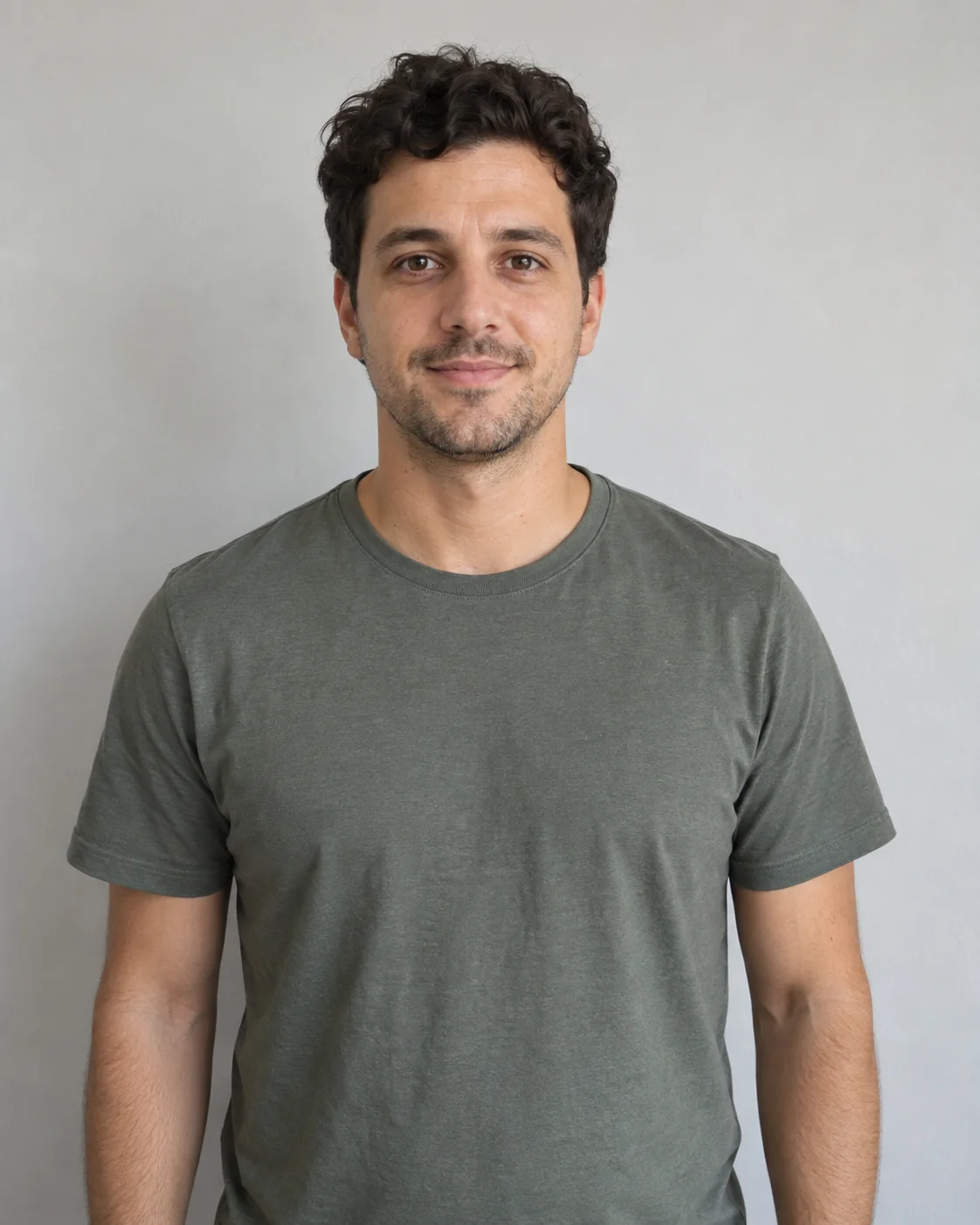
Good starting point
- One person per image, with a sharp and unobstructed face
- A front or slight three-quarter view in even light
- Visible hair, shoulders and the outfit you want to use
- Distinct appearances that make the two roles easy to recognize
Two photos. Your own giant hologram encounter.You on the bridge. Your friend as the giant hologram. Upload two photos to recast the You Look Lonely scene, with its neon setting, gestures and reaction shots.
Compare the two input photos with the video. Follow each identity from the close-up to the giant hologram shot and back.
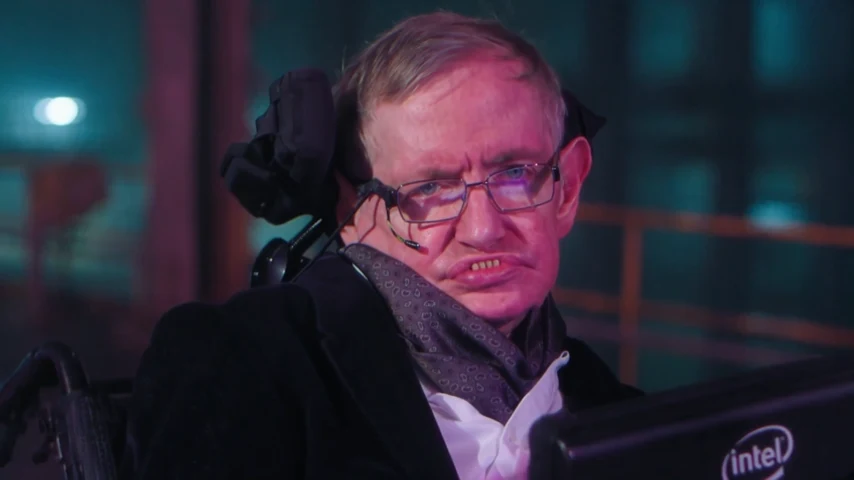
01The bridge character
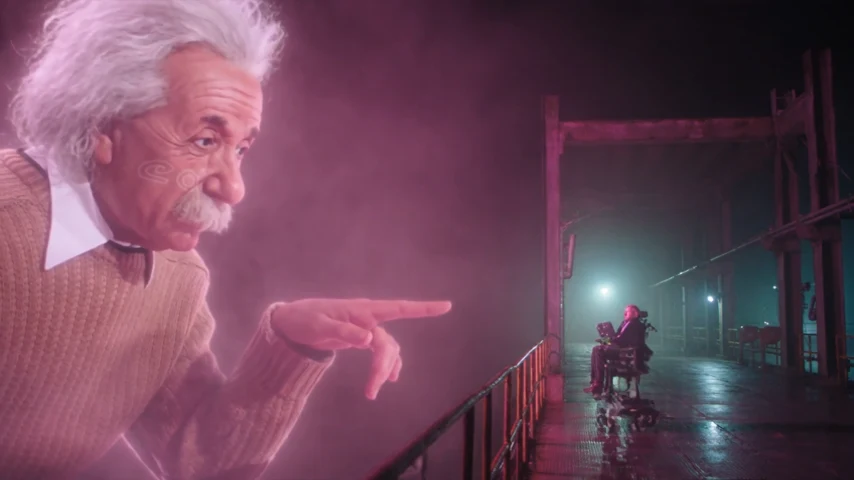
02The giant hologram
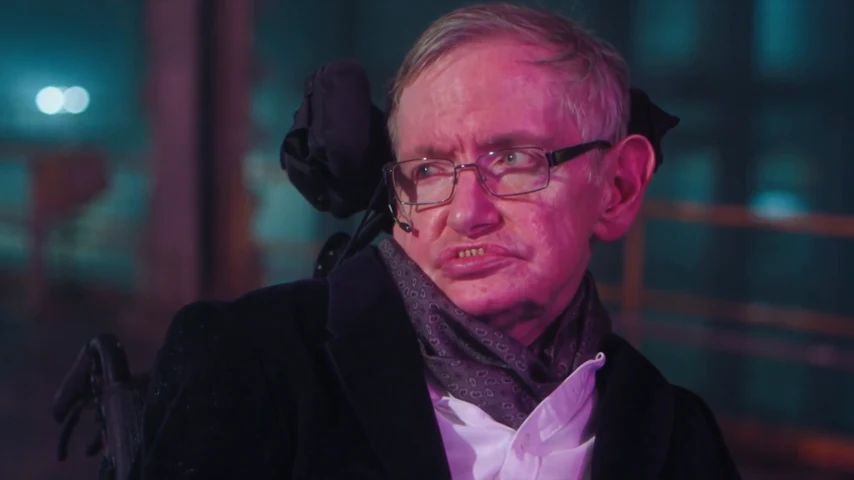
03The reaction
You Look Lonely AI remakes recast the giant hologram encounter associated with Blade Runner 2049. One character looks up from a bridge while a much larger holographic figure leans toward them.
The film scene pairs K with a giant Joi advertisement. AI remakes give those two roles a different cast while retaining the scale contrast, neon atmosphere and shot sequence. This template uses the displayed remake reference, not a promise to reproduce every frame of the film.
Read the original scene's VFX interviewBoth roles are customizable here. This is a reference-guided character remake, not simply an edit that pastes a new face onto an otherwise unchanged clip.
The movie scene is the reference point; the social edits and this generator are later interpretations.
Blade Runner 2049 places K opposite a giant Joi hologram advertisement. VFX supervisor John Nelson described the filmed performances, interactive lighting and digital projection effects used to build the scene.
Read the original scene's VFX interviewCreator-made versions recast the encounter with different pairs. The linked examples are context for the format, not proof that this tool made those videos or that every version uses the same source.
Zeyan · supplied remake exampleChoose the person on the bridge and the giant hologram with two separate photos. The selected reference supplies the camera, gestures and scene timing.
Two photos supply the characters. The hologram scene is already selected.
Add one image to Bridge Character and another to Giant Hologram. Use clear, separate portraits or upper-body photos; do not put a two-person group photo in either slot.
Choose the 10-second encounter or its 5-second opening, then 480P or 720P. Preview the reference and check the total credits before starting.
Check each face across the close-ups and wider view, especially the pointing gesture and eyelines. Open the completed result in History to watch and download it.
The two photos define separate identities. The reference sets their relative size, lighting and place in the scene.
Keep the role choice simple, without writing a separate prompt for every shot.
The first photo guides the normal-sized person's face, hair, build and clothing, including their reaction shots.
The second photo guides the larger character. Its clothes stay part of the requested appearance; the reference supplies the giant scale and hologram lighting.
The clip guides the camera, pointing gesture, eyelines and cuts. Generated details can still change, so review both people throughout the result.
The slots describe actions, not genders. Decide who stands on the bridge and who becomes the hologram before generating.
The generation button shows the total credit cost for both characters at your selected length and quality.
The default is 10 seconds at 480P. Five seconds covers only the opening; it does not compress the complete encounter. Longer clips and higher resolution use more credits.
A new attempt spends additional credits. Review your photos and the completed clip before deciding to generate again.
Technical generation failures return the task's credits automatically. Imperfect likeness or movement in a completed video is not a technical failure.
Check what a workflow actually replaces. A video edit, a face swap and a two-character regeneration are not the same process.
Choose another two-character template or bring your own reference video.
Upload your own reference and specify which characters should change.
Explore generatorAssign two different characters to a rider-and-chaser sequence.
Explore generatorExplore more ready-made scenes for one, two or three characters.
Explore generatorIt is a two-photo remake of the giant hologram encounter associated with Blade Runner 2049. One photo defines the normal-sized bridge character; the other defines the giant hologram. The displayed reference guides the gestures, camera and scene timing.
Photo 1 goes in Bridge Character: the normal-sized person looking up, including the close-ups. Photo 2 goes in Giant Hologram: the larger figure leaning toward them. These assignments follow the roles across shots, not a fixed left or right screen position.
It requests both characters' faces, hair, body proportions and visible outfits from their photos, using the video as the motion and scene reference. It regenerates the footage rather than changing only facial pixels, so background and small details can also vary.
The instructions preserve the second photo's visible clothing while applying the reference's giant scale and hologram lighting. You do not need to copy the film character's appearance. Use an image with visible shoulders and clothing; unseen details must be inferred.
No. It follows only the opening five seconds and does not include the final reaction shot. Choose 10 seconds for the selected encounter with all three shots. Both options use 16:9 landscape framing and do not guarantee frame-for-frame reproduction.
This page uses a fixed two-character hologram reference and a preset prompt. It does not offer a background upload or custom shot sequence. Use AI Character Swap for your own reference video and optional instructions.
The photos guide identity, but likeness is not guaranteed in every frame. Neon lighting, giant scale, side views and hand-to-face overlap can change facial details. Watch the full result and check that the two roles have not blended or swapped.
The template uses the selected reference's audio; previews may start muted. Generating a video does not grant film, music or likeness rights. Use photos you have permission to use and check the rights needed for your intended publication.
Choose the duration and resolution to see the total credits on the generation button. Your task appears in History, where you can follow its progress and open or download the finished video.
No. This is an independent AI character-replacement tool. Blade Runner 2049 and You Look Lonely identify the scene and remake format; they do not imply affiliation, sponsorship or endorsement.